Wednesday, December 23, 2009

Top 10 Benefits of Office 2010 Beta


Top 10 Benefits of
Office 2010 Beta

Microsoft Office 2010 Beta

Microsoft® Office 2010 offers rich and powerful new ways to deliver your best work at the office, home, or school. Grab your audience’s attention and inspire them with your ideas visually. Create results with people at the same time and stay connected to your files across the town or around the world.1 With Office 2010, you’re in control of getting things done and delivering amazing results according to your schedule.

1

Express your ideas more visually

Office 2010 opens up a world of design options to help you give life to your ideas. The new and improved picture formatting tools such as color saturation and artistic effects let you transform your document visuals into a work of art. Combined with a wide range of new pre-built Office themes and SmartArt® graphic layouts, Office 2010 gives you more ways to make your ideas stick.

2

Accomplish more when working together

Brainstorm ideas, provide better version control, and meet deadlines faster when you work in groups. The co-authoring experience for Microsoft® Word 2010, Microsoft PowerPoint 2010, Microsoft® Excel Web App and Microsoft OneNote shared notebooks let you work on a file with several people at once - even from different locations.2

3

Enjoy the familiar Office experience from more locations and more devices

With Office 2010, you can get things done more easily, from more locations and more devices. Using a smartphone or virtually any computer with an Internet connection, you can work when and where you want to work.3


4

Create powerful data insights and visuals

Track and highlight important trends with new data analysis and visualization features in Excel 2010. The new Sparklines feature delivers a clear and compact visual representation of your data with small charts within worksheet cells. Filter and segment your PivotTable data in multiple layers using Slicers to spend more time analyzing and less time formatting.

5

Deliver compelling presentations

Captivate your audience with personalized videos in your presentation. Insert and customize videos directly in PowerPoint 2010—trim, add fades and effects, or bookmark key points in the video to call attention to selected scenes. Videos you insert are now embedded by default, relieving you from managing and sending additional video files.

6

Manage large volumes of e-mail with ease

Compress your long e-mail threads into a few conversations that can be categorized, filed, ignored, or cleaned up. The new Quick Steps feature let you perform multi-command tasks, such as reply and delete an e-mail in a single click, saving you time and in-box space.

7

Store and track all your ideas and notes in one place

Get the ultimate digital notebook for tracking, organizing, and sharing your text, picture, video and audio notes with OneNote 2010. New features such as version tracking, automatic highlighting, and Linked Notes give you more control over your notes so you’re always on top of where your ideas came from and the latest changes when working in teams.4

8

Get your message out instantly

Broadcast your PowerPoint presentation to a remote audience, whether or not they have PowerPoint installed.5 The new Broadcast Slide Show feature allows you to share your presentation through a web browser quickly without additional set up.

9

Get things done faster and easier

Microsoft Office Backstage™ view replaces the traditional File menu to give you a centralized space for all of your file management tasks, such as the ability to save, share, print, and publish. The enhanced Ribbon across Office 2010 applications lets you access commands quickly and customize tabs to personalize the experience to your work style.

10

Access work across devices and platforms

Enjoy the freedom of using Office 2010 from more locations on more devices. When you use Microsoft® Office 2010, you’re getting the familiar and intuitive Office experience across PCs, Smartphones, and Web browsers on the go.

Sunday, December 6, 2009

Chromium OS


Releasing the Chromium OS open source project

In July google announced that they were working on Google Chrome OS, an open source operating system for people who spend most of their time on the web.

they are open-sourcing the project as Chromium OS.They are doing this early, a year before Google Chrome OS will be ready for users, because they are eager to engage with partners, the open source community and developers. As with the Google Chrome browser, development will be done in the open from this point on. This means the code is free, accessible to anyone and open for contributions. The Chromium OS project includes our current code base, user interface experiments and some initial designs for ongoing development. This is the initial sketch and we will color it in over the course of the next year.

They want to take this opportunity to explain why we're excited about the project and how it is a fundamentally different model of computing.

First, it's all about the web. All apps are web apps. The entire experience takes place within the browser and there are no conventional desktop applications. This means users do not have to deal with installing, managing and updating programs.

Second, because all apps live within the browser, there are significant benefits to security. Unlike traditional operating systems, Chrome OS doesn't trust the applications you run. Each app is contained within a security sandbox making it harder for malware and viruses to infect your computer. Furthermore, Chrome OS barely trusts itself. Every time you restart your computer the operating system verifies the integrity of its code. If your system has been compromised, it is designed to fix itself with a reboot. While no computer can be made completely secure, we're going to make life much harder (and less profitable) for the bad guys. If you dig security, read the Chrome OS Security Overview or watch the video.

Most of all, we are obsessed with speed. We are taking out every unnecessary process, optimizing many operations and running everything possible in parallel. This means you can go from turning on the computer to surfing the web in a few seconds. Our obsession with speed goes all the way down to the metal. We are specifying reference hardware components to create the fastest experience for Google Chrome OS.

There is still a lot of work to do, and we're excited to work with the open source community. We have benefited hugely from projects like GNU, the Linux Kernel, Moblin, Ubuntu, WebKit and many more. We will be contributing our code upstream and engaging closely with these and other open source efforts.

Google Chrome OS will be ready for consumers this time next year. Sign up here for updates or if you like building your operating system from source, get involved at chromium.org.

Tuesday, November 17, 2009

Windows File Sharing shortcoming


Hi Dear Friend We got our First NewsLetter printed and soon it will be released in a launch party. So I wanted to share an article in it with you all..Here it is

Hacking Into Windows System on LAN

Hi freinds,Welcome to hacking world by Terminator 007,I would be Updating you with
different hacking techniques in this column in every publication.So keep looking for the Next
Blast.let's start with our today's topic..
Remember that I won't go into much detail, because it could start getting
too complicated to explain to newbies. This is a newbies guide after all. If
you want more detailed information about file sharing search the web, or
read some good NT networks administration books.

Windows has an option called file and print sharing. You can use this
option in order to "share" drive and printers, which means giving access to
files and printers to other people - people on your own network, specific
IPs or even the whole world. When you turn this option on, you leave an open
port (port number 139) that accepts connections and understand the "NetBIOS
protocol", a set of commands (a "language") used to access remote file
and print sharing servers, so that other computers can access the files or
printers you decided to share.

If you don't know if file sharing is active in your computer just go to the
control panel and select the Network icon.If you have this then you have sharing activated, to turn it off just uncheck
the "I want to be able to give others access to my files" and do the same to
the other.
Let's return to the ports thing. Remember port 139? The File Sharing
Port is port 139 and it's called NetBIOS Session Service port. When you have
this option enabled you also have 2 other ports open but they use the UDP
protocol instead of the TCP protocol. These ports are 137 (Name Service) and
138 (Datagram Service). Now if you know anything about DoS attacks (known to
many as nukes) port 139 should sound familiar... There's a kind of DoS (stands
for Denial of Service) attack called the OOB nuke (OOB stands for Out Of Band)
or "winnuke" that sends an OOB packet to port 139 and makes Windows lose
connection and drop the user to "blue screen mode".There are tools on Internet which perform this OOB attack for you so you just need to find out a system with File Sharing enabled. If you wish to know more
about DoS attacks, I suggest that you wait for the DoS attacks Article.

This is not all there are ways by which you could install a trojan in the system with file sharing enabled without his permission.Thus,gaining complete control on his system.All this is possible by using tools inside windows only,Yess..No external tool required except for your trojan.

Okay, enough said, let's not get into deep otherwise i may get under some cyberlaw and stuff like that.I have gave you the
way Internet is the place where you could find all of it.So keep Searching.....

Article By:-
Terminator 007
Keep it secret

Dont Ask me now who is this Terminator

Wednesday, November 4, 2009

NEW ORKUT

Hey Friend be ready to feel the taste of new orkut soon you know

The orkut team has been working hard on building a new, fast and exciting experience. We've added lots of features and updated others - and we hope that existing and new users alike will enjoy this next generation of orkut. To start using the new orkut, check out the get started section. See you there!

Meantime, here's a look at the new orkut....


Faster & easier

Simpler and faster

Simpler and faster

Our team has worked closely with our pals at Google to create the fastest, easiest to use social network. It's all about speed: Now, you can browse photos, check out friend profiles, and view updates faster than ever. So you can enjoy your friends more, and spend less time waiting around for something to happen.

Homepage

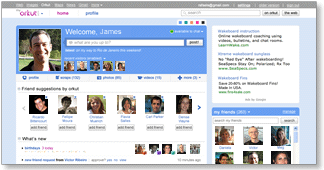
Our users told us they wanted to see their favorite activities at the top of the front page. The result: Larger photos, easier to access notifications, faster navigation, and more updates closer to the top... these are just some of changes we've made to speed things up.

Other Google properties

Easy navigation to other Google properties

Visiting orkut but need to check your Gmail, or look up an address on Google Maps? Now its easy to stay logged in and visit any Google product by clicking on the small header at the top of any page.

Header bar

Notifications

One-stop notifications

No more skipping around to collect your friend requests, testimonials, community requests or birthday announcements! Now you can review all your requests and announcements in one place. The 'what's new' section of the homepage shows all your notifications - just click an item to show more info or take action. Notifications stay on that page until you take action, and you can see earlier notifications by clicking "older".

Photos

Fast photo uploads and photo sharing

Now you can select multiple photos and upload them 3x faster. And there's no more waiting as photos upload, so you can start reordering your images right away. Just drag and drop them as you want, rotate them, pick an album cover, or add captions.

You can also share the album with groups of friends with a single click, or by selecting faces to tag with your photos. Your friends don't need to be on orkut to see your photos, either - just enter their emails and they can see the images without signing up. Not sure who to share with? Orkut will suggest other folks who might want to see your photos. Photo sharing is a total snap with the new orkut.


Make it your own

Status

State your status!

"Ready for the weekend!!!" "Going to the game :)" "Touched down in New York ;)" - Tell your friends what you're up to by changing the status on your homepage. Your status is always visible to friends on your profile page, and gets posted to friends' updates immediately. With the new orkut, your pals can also comment on your status in the 'friends updates' section. Check and change your status whenever you want, and keep everyone in the loop.

Colors

Pick your favorite colors

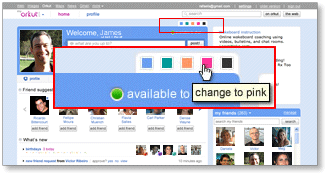
We've made orkut even more colorful by letting you customize your profile and homepage with your choice of 5 colors. Just pick a new color, and when your friends visit your profile, your page will have a whole new hue.

Changing colors

'About me'

It's all 'about me' with more customization

If you want to do more than just write about yourself, now you can add a YouTube video, a photo or even embed apps in the 'about me' section. Go to your profile and click on 'about me' to add, edit, and make it truly your own.


Friendlier friending

Finding friends

Find and invite friends - fast!

Finding friends is one of the most important activities on orkut! That's why we've made our "find friends" feature smarter and easier to use. When orkut finds someone you may know, you'll see a suggestion to connect right on your homepage.

And if there's a close friend who's not on orkut yet, we'll help you get them on orkut fast, too. Just select "add as friend" (or "invite" for non-orkut users) and send a quick message to invite them to join you on orkut. Once they accept your invitation, they'll be added to your friends list so you can start sharing your world through orkut.

Friends' updates

Cool new friends' updates on your homepage

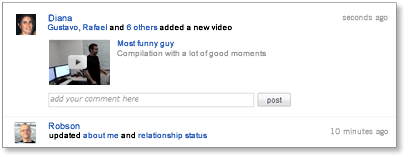
Tired of just reading updates from friends? Now with inline comments for status messages, photos and videos, plus easy to use inline video play, your friends' updates make it easy to interact with your friends, not just read their static postings.

Comments box

Start typing anywhere you see a comment box, then click "post" and your comment will be added to your friend's latest update. Any photo comment you leave in updates will also show up on the actual photo page.

Inline video comments

Want to watch a video right away? Great! Just click on the video and it will expand and play directly in the updates section. Love the video so much you want to add it to your favorites? Select the option to add to your favorites and it will show up in your own 'videos' section.

Friends list

More dynamic friends list

Want to find a friend quickly? Your 'my friends' section now lets you scroll through all of your friends directly from homepage. Or just start typing a friend's name in the friends search box, and you'll see only those friends with names that match what you typed. Also, if you have your friends organized in different groups, you can use the pull-down menu next to 'my friends' to filter for different groups of friends.

Activity updates

Latest activity updates on friends profiles

Updated streams on your friends profile pages tell you what they've been doing lately - including photo and video uploads, apps activities, new friends added and more. It's the next best thing to being there in person!


Connect in new ways

Scraps

Post a scrap to say "hello"

Want to say a quick "what's up" to a friend? The 'scrap' feature lets you post directly to their profile pages. It's never been easier to drop by and leave a message.

Video chat

Video chat

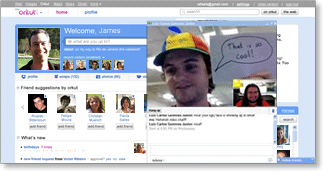
Face-to-face just got a lot easier, thanks to orkut's new video chat feature. Simply start a chat with a friend the old-fashioned way, then click "actions" on the chat window. You can choose between audio, video or group chat.

IM options

Orkut Promote

Promote stuff through your friends

'Orkut Promote' is a cool new feature that lets you create online flyers you can share with your friends. Want to sell your old skateboard? Spreading the word about a new video? Just create a promotion and have your friends to forward your items onto their friends. Promote encourages content sharing from friend to friend, and group to group. You can even track how many people have seen your promotions by visiting the metrics tab.

Monday, November 2, 2009

Meet Google Wave


Google Wave is a new online communications tool that enables groups of people to edit and discuss documents simultaneously on the web. The Google Wave team says Wave is "what email would look like if it were invented today." [1] However, because Wave is mostly a document collaboration tool, the oversimplified email metaphor can mislead new users. The initial Wave experience can feel chaotic and confusing, but use cases for Wave abound. Come on in and meet Wave.

Modernizing Email

Relative to the lifespan of most technology, email is ancient. Invented over 40 years ago, email predates the internet as we know it—and in fact was a crucial tool in the creation of the internet. Despite its age, email hasn't evolved much since the 1960s. Electronic mail is based on the paradigm of postal mail, a system of passing messages back and forth between senders and recipients. Wave makes a bet: that surely there must be a better way to send, receive, preserve, and grow shared communiques than via email.

Email's Problems

Figure 1-1. A fan describes how Wave improves on a common email workflow. (Video clip)

Email is simple, wildly popular, and works well—or else it wouldn't have stayed in such widespread use as long as it has. But email has serious drawbacks when using it to manage a conversation within a group.

  • Email propagates multiple copies and versions of messages. As soon as email is sent, the message's contents are locked in. It can only be copied, pasted, and sent on. For example, Kaylee types an email message, addresses it to Zoe, and sends it. A copy of that message stays in Kaylee's sent box, and another copy appears in Zoe's inbox. Zoe replies and optionally includes a copy of the original message in her response. A copy stays in her sent box, and yet another copy appears in Kaylee's inbox. Kaylee replies to Zoe's reply, cc's: Wash, and sends it. The Send button gets pushed only three times, yet seven copies of the same message appear in differing states for three people—each of them a dead, lifeless version of another. Email propagates copies of copies, storing each in a rudimentary filing system of "boxes." Email was designed as a system of notification, not collaboration. Given that email was designed to imitate "snail mail"—where the ultimate destination was either the circular file or a filing cabinet—letters sent via email seemed destined for cold storage, not the cauldron of innovative workspaces.
  • You can't embed rich content like maps, photo slide shows, or video clips in the body of an email. Email's answer for anything that's not text is "The Attachment." Whether it's a document, a photo, a video, a group survey, or a web page, email wasn't designed to incorporate interactivity or richness within the body of the message itself. You can include a link to a web page inside email, but sometimes those break or become unclickable, and they force the recipient out of your email and into a browser. While some email clients like Gmail or Microsoft Outlook can display rich message formatting with images and colors, or display attached files inline, there's no consistency. No one's email always looks the same.
  • To reply to a subsection of an email, you have to quote that section manually. Kaylee sends Wash an email telling him about the engine upgrade project she's working on, then asks where the nearest place to stop for parts is, and how long it will take to get there. An email message is just a flat document, so it's not easy for Wash to respond to each question Kaylee has asked in a readable order. He could reply to her message and manually copy and paste just her questions and position his answers directly after them. But that's a lot of work—and most people don't do it. Often questions and individual points that need addressing via email get lost because there's no easy way to reply to a specific section of a message.
  • It's not easy to privately respond to specific people within a group email. When the group finally does stop for parts, Badger emails them asking for a cargo drop-off. Zoe wants to ask the crew how they should negotiate payment. She can't reply to all because Badger will see it, so she has to manually edit the recipient list on the private email and create yet another copy of the message.

Since email's invention in the 1960s, the internet and then the World Wide Web was born, which gave everyone an instant electronic printing press. In the early days, web sites were just static documents that didn't change. As the web grew and the technology behind it progressed, web sites became interactive, ever-changing hosted applications, where you could store and update information, communicate with others, chat in real-time, and even check and send email. In a world where broadband is widely available and you can use blogs, Wikipedia, instant messenger, and hosted web applications that obviate the need for any software on your computer besides a web browser, email looks even more ancient.

While in practice Google Wave isn't a direct replacement for email, understanding email's problems given the capabilities of the modern web is a good starter framework for understanding what Google Wave can do.

Wave's Solution: Conversations as Live Documents

Rather than pass back and forth multiple copies of messages, Google Wave hosts a single copy of a conversation that all participants can edit and add to. Wave displays the latest version of the conversation to everyone in the group in real-time, even as it's changing. That means if Jack has the wave he sent Jill open on his computer in California, and Jill is typing her responses in New York, Jack sees the wave change keystroke by keystroke.

Clarification: Capital 'W' Wave refers to the whole product, Google Wave. Lowercase 'w' wave refers to a hosted conversation that has one or more participants.


Google Wave treats an email conversation with multiple recipients and senders as a document with multiple editors and writers. If you can make the conversations-as-documents and documents-as-conversations leap along with Wave, the system makes 100% more sense.

Quote: "The goal of Google Wave is to collaborate INSIDE email rather than using email to ARRANGE to collaborate." —Wave user Marsh Gardiner[2]


In other, smaller ways, Google Wave addresses the rest of the problems with email listed above. Using Google Wave, all the participants in a conversation have the ability to:

  • Reply to a subset of a wave inline
  • Add rich interactive media like videos, images, maps, and polls in-wave
  • Play back and copy earlier versions of a wave, so that you can revert to an older state of a given wave, or see how it changed over time

In theory, Wave is a big upgrade to email and document collaboration tools. The following table sums up the difference between "The Email Way" and "The Wave Way."


The Email Way The Wave Way
People Sender or Recipient Participant
Messages Copies Single, hosted conversation
Rich Content Attachments Inline gadgets
Quoting/commenting Manual Forum-like threading
Privacy CC, BCC Inline, private threads

Wave sounds great in theory, right? In practice, Wave introduces complexities that put off new users.


Sunday, November 1, 2009

Hyper-V server 2008 R2 beta By Microsoft

Hyper-V server 2008 R2 beta is available!!! (with Hyper-V v2.0)

Here it comes powerfull and with new so desperately awaited features… Hyper-V 2.0…

http://www.virtualization.info/2009/01/microsoft-releases-hyper-v-20-and.html

http://edge.technet.com/Media/Demo-Hyper-V-Server-and-Live-Migration/

http://www.microsoft.com/virtualization/downloads.mspx

Take a look / give it a try!

PS. take a look at new redesigned Microsoft Virtualization site… Where you can find all information about all MS virtualization products …:

http://www.microsoft.com/virtualization/default.mspx

Cloud Computing


Cloud computing is an emerging computing technology that uses the internet and central remote servers to maintain data and applications. Cloud computing allows consumers and businesses to use applications without installation and access their personal files at any computer with internet access. This technology allows for much more efficient computing by centralizing storage, memory, processing and bandwidth. Cloud computing is broken down into three segments: "applications," "platforms," and "infrastructure." Each segment serves a different purpose and offers different products for businesses and individuals around the world. In June 2009, a study conducted by VersionOne found that 41% of senior IT professionals actually don't know what cloud computing is and two-thirds of senior finance professionals are confused by the concept,highlighting the young nature of the technology. In Sept 2009, an Aberdeen Group study found that disciplined companies achieved on average an 18% reduction in their IT budget from cloud computing and a 16% reduction in data center power costs.

Friday, October 30, 2009

Windows 7 Windows XP Mode


Windows XP Mode and Windows Virtual PC, available on Windows 7 Professional and Windows 7 Ultimate, allow you to run multiple Windows environments, such as Windows XP Mode, from your Windows 7 desktop.

Check out just a few of Windows Virtual PC’s newest features


Easy setup of Windows XP Mode
Once both the Windows Virtual PC and the virtual Windows XP environment are installed, Windows Virtual PC provides a simple wizard to set up Windows XP Mode with just a few clicks.

USB support
Users can access USB devices attached to the host directly from virtual Windows XP. These devices include printers and scanners, flash memory/sticks and external hard disks, digital cameras, and more.

Seamless applications
Publish and launch applications installed on virtual Windows XP directly from the Windows 7 desktop, as if they were installed on the Windows 7 host itself
Folder integration between host and guest
Access your Windows 7 Known Folders: My Documents, Pictures, Desktop, Music, and Video, from inside the virtual Windows environment, such as Windows XP Mode.
Clipboard sharing
Cut and paste between your Windows 7 host and any virtual machine.
Printer redirection
Print directly to your attached printer from your seamless application or virtual machine.

SO enjoy Windows XP mode in your Windows 7 so this time you won't miss what u did in Windows Vista

Thursday, October 29, 2009

Time to get your feet wet with the new graphics capabilities of JavaFX, yes you work for 15 minutes or less, ending with a simple game using the JavaFX Mobile device emulator.

JavaFX is a software platform for creating and delivering rich Internet applications that can run across wide variety of connected devices. The current release (JavaFX 1.1.1, March 2009) enables building applications for desktop, browser and mobile phones. TV set-top boxes, gaming consoles, Blu-ray players and other platforms are also planned to be released soon.

Saturday, October 24, 2009

The First Blog for elixir

Great to SEE you friends here on this blog.This Blog is going to serve for you as the ultimate resort for any thing about computers.Every kind of technologies,latest researches,technical tweaks could be easily find here.
make sure you tune in here to create your questions also to get most satisfactory answers.

You will find all kind of technical tweaks and updates about what my club elixir does in the field of research as well as in extra curricular activities.Some fun tasks would also be part and weekly challenges being a portion for attention.